Search in blog

Showing posts with label Windows 8. Show all posts

Sunday, 8 February 2015

Auto-remove windows updates


  • Windows updates makes the computer run slow. When I help others to get more speed from their computer. I sit for hours and removes all security updates. Now it's the end of it. I have used the AutoHotkey to do it automatically. I have one for the Swedish system (tested on Windows 7 and 8) and one in English (not tested).
  • All you have to do is:
    • 1# Download file
    • 2# Run it
    • 3# Go to Control Panel> Programs and functions> Installed Updates and search for "update for Windows"
    • 4# press F3 (start script)
    • 5# Press the OK button (in the window that came up at point 4#)
      The script will start when the "installed updates" window is in focus.
    • (6# Abort with Escape button)

    Ladda ner för svenska system:
    https://drive.google.com/open?id=0BxE4k4xEiNO2UEI0cUVLTDR2SDQ

    Download for English systems:
    https://drive.google.com/file/d/0BxE4k4xEiNO2QzdjY0VoVG9hQWM/view?usp=sharing
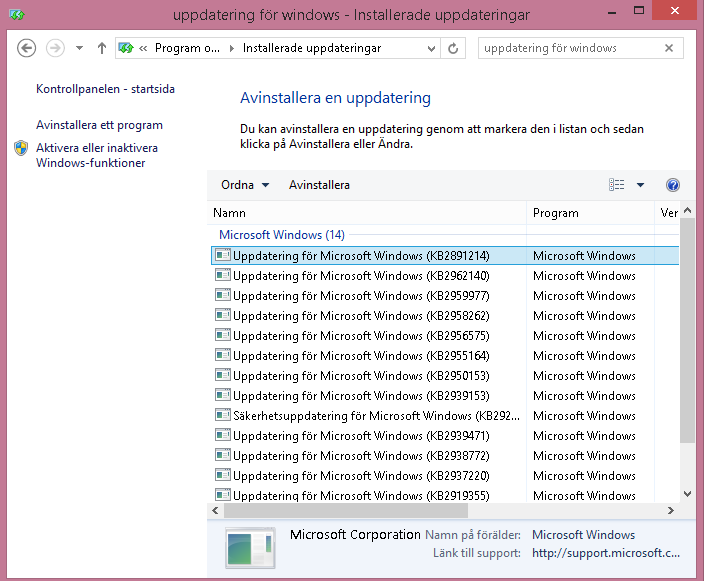

    Click on this window on your computer to make it in focus

Friday, 12 December 2014

Autostart program as administrator in windows 8


  • If you have added a program in the Startup folder, and you have said that the program must have administrative rights, the software will not start.
  • How to fix it:
    1. Remove your auto start shortcut in the Startup folder.
    2. Create a shortcut to your program on your desktop.
      • Hold the right mouse button over the program and press and drag it aside. Release. Then select Create Shortcut from the menu that pops up.
    3. Right click on it and go to properties:
    4. Go to advanced and run as admin:
    5. Now. Go to the Start menu and type on the keyboard "Sche" and press the "Task Scheduler" (sv: Schemalägg aktiviteter)
    6. Press action in the menu and create activity:
    7. Do this: Put a name, Run with highest priviligies
    8. And this: New, start when login, All users, OK
    9. And this: New, Start a program
      (Change the name to what you need.)
      "C:\Users\Katarina\Desktop\Script.lnk"
      (C:\Users\Your account\Desktop\Your link name.lnk)
    10. This:
    11. In the end:

      Done!

Monday, 24 November 2014

Windows 8 fix broken profile


  • If you can not get into the settings on Windows 8, it is probably because your profile is broken. You can create a new profile with the administrator account.
    • To enable the Administrator account, do the following:
      • Go to the start menu (press the Windows key on your keyboard).
      • type cmd (eller kommando på svenska)
      • Right-click the command prompt and press Run as administrator
      • If you can't run as administrator do this:
        • Reboot computer and press F8 just before you see the windows logo.
        • In the menu click "Failsafe mode".
        • Select your broken profile and login, yes it works here.
          • Go to the start menu (press the Windows key on your keyboard).
          • type cmd (eller kommando på svenska)
          • Right-click the command prompt and press Run as administrator
      • Type the following into the box that appears:
        • net user administrator /active:yes
          • På svenska: net user administratör /active:yes
        • Press enter
        • It should read "command performed" or similar
      • Go to the Start menu (Windows key)
      • Press your icon in the right corner and select Administrator
        • You must log in to the Administrator account
      • Now, go to the control panel and user accounts.
      • Press Manage another account.
      • Press Add Account.
      • Press the Add button.
      • Press to log in without a Microsoft account (not recommended).
      • Local account.
      • Enter your new username and password.
      • You now have a new administrator account
      • Log on to the new account so we disable the system account.
      • Go to the Start menu (Windows key)
      • Press your icon in the right corner and select your new account
        • Go to the start menu (press the Windows key on your keyboard).
        • type cmd (eller kommando på svenska)
        • Right-click the command prompt and press Run as administrator
        • Type the following into the box that appears:
          • net user administrator /active:no
            • På svenska: net user administratör /active:no
          • Press enter
          • It should read "command performed" or similar

Monday, 23 June 2014

Close an app in Windows 8.


Try this:
  1. Move the mouse to the top left corner so the menu appears.
  2. Right-click on it to close.
Or do it like a pro windows 8er:

  1. Move the mouse to the top left corner so the menu appears.
  2. Hold the left mouse button on the one you want to close.
  3. Drag it to the bottom of the screen. (See image)
  4. Release the mouse button.

My app store in Windows 8 has not the Windows 8.1 update.


  • If you do not have automatic Updates on your computer you get this problem.
Do this:
Control panel > Windows update > Search for updates
When search is done do this:
  1. Click "Important updates". (See Image)
  2. Click the "Box" near "Names" so all becomes unchecked.
  3. Check all the KBxxxxx80 to KBxxxxx89. (See Image)
  4. Click "Install".
  5. After install you should see the "Windows 8.1 Update" in your store app. (If not reboot and start over. You will get more KBxxxxx80-89 updates after you reboot.)

Why Windows mail app wont work in Windows 8.


  • There are some serious bugs in the built-in email program in Windows 8. However download Windows 8.1 they usually they disappear.

Where is the Autostart folder in windows 8

C:\Users\Your Name\AppData\Roaming\Microsoft\Windows\Start Menu\Programs\Startup


  1. Copy this text to your file explorer:
    C:\Users
  2. Double click your name.
  3. Copy this text after your name and press enter:
    \AppData
  4. Locate:
    Roaming
    Microsoft
    Windows
    Start MenuProgramsStartup